
Add Drill to an Event
Drills created with Ultrax Drill can be added to events in the calendar:
1. Click on Calendar in the toolbar. A calendar view will open with all of your events.
2. Select the event from the calendar by clicking on it. A new window will open on the right side of the screen.
3. In the Drills section of the event details, click on Attach Drill.
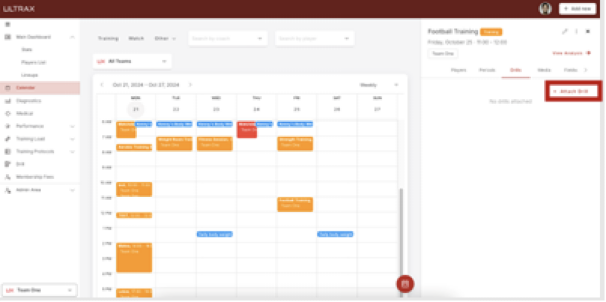
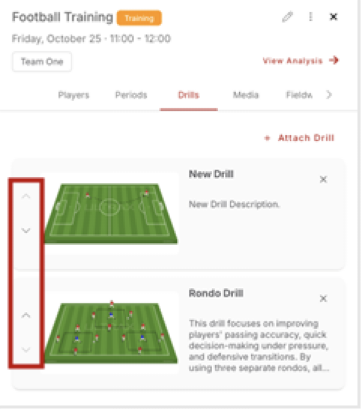
4. Select the drill from the menu by clicking on it. It will appear in the Drills section of the event details.
5. If you add more than one drill, you can rearrange them by clicking on the arrows on the left side.
Add Drill to a Training Protocol
To add a drill to a training protocol as you would an exercise, you first must save this drill as an exercise. For instructions on how to do this, refer to the Create, Edit or Delete a Drill section. After you save a drill as an exercise, you can add it to the training protocol:
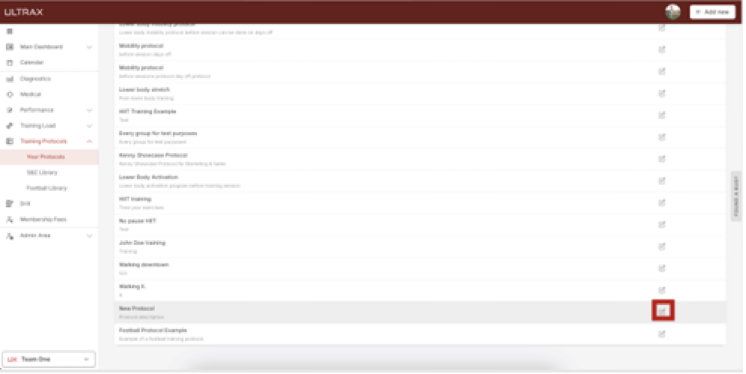
1. In the Training Protocols section of the sidebar, click on Your Protocols to view a list of all protocols you created.
2. Find the desired protocol in the list and click on the Edit icon on the right side to edit its details.
3. In the newly opened screen, find your drill exercise in the Football section, then click on Add to protocol.
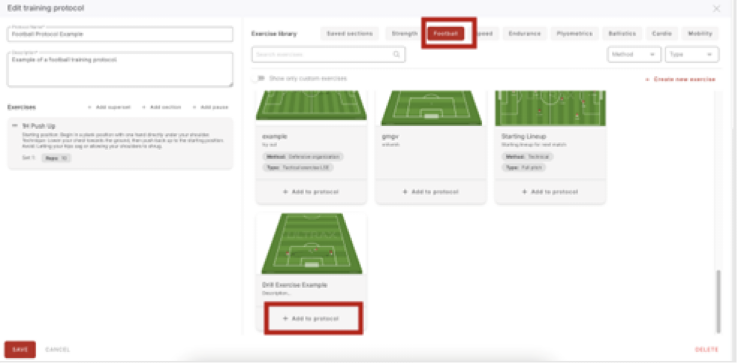
4. Edit the details of the drill for this specific protocol in the popup window, then click on Save once you’re finished. Click on Save again to save changes to the training protocol.
