Create and Manage Team Lineups
The lineup management feature in Ultrax allows coaches to easily build team lineups by assigning player positions for different formations:
1. Click on Lineups in the Main Dashboard section of the sidebar.
2. Select the desired lineup from the dropdown. The players will automatically be assigned to the positions that you appointed to them when creating their profiles. If a player doesn’t have a preferred position, you can assign one to them in the menu on the right side of the screen.
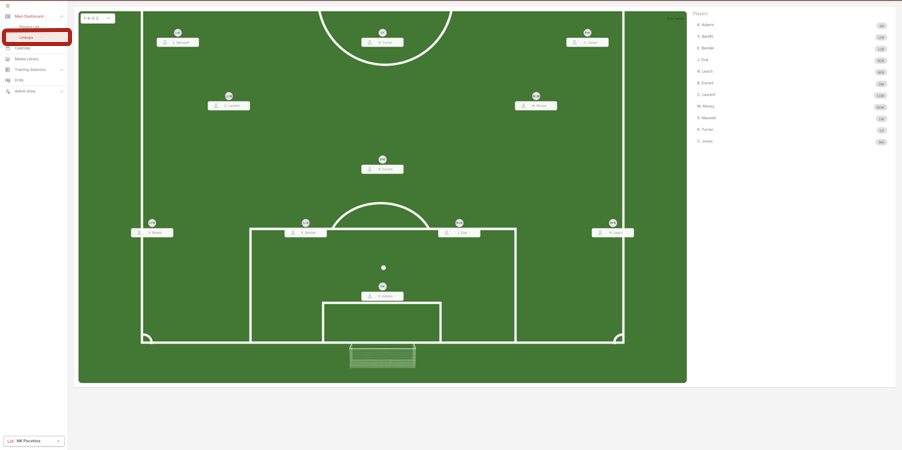
3. You can change the players’ positions by dragging and dropping their names across the lineup.
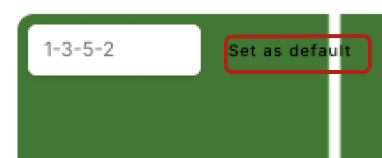
4. If you want to set the current lineup as the default one, you can do it by clicking on the Set as default button next to the dropdown.
Match Score
Coaches can now enter match scores in events of the match type:
1. To create a specific match, click on Add New, select Event, and then choose Match.
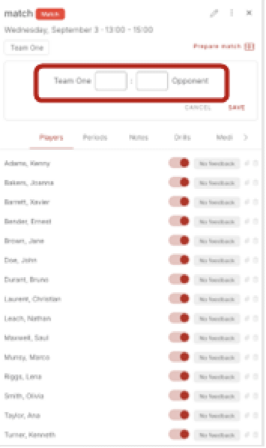
2. Once the game has finished, open the event and click + Add Match Score.
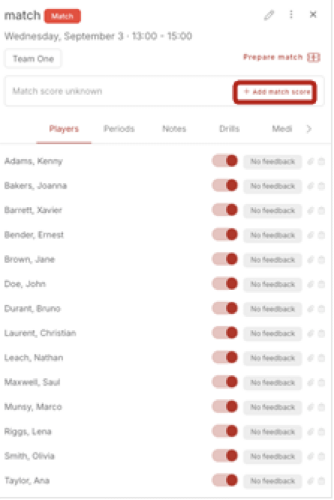
3. After clicking + Add Match Score, you will be able to enter the score of the match.
Match Prep
1. To create a specific match, click on Add New, select Event, and then choose Match.
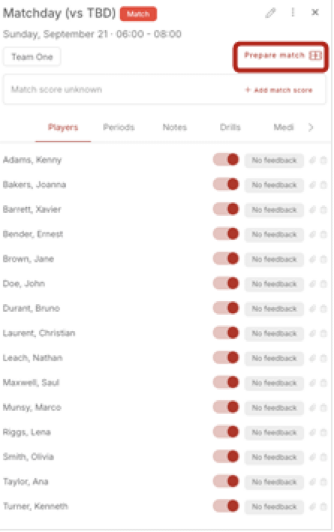
2. Click Prepare Match in the top right corner. A new window will appear where you can manage the match preparation.
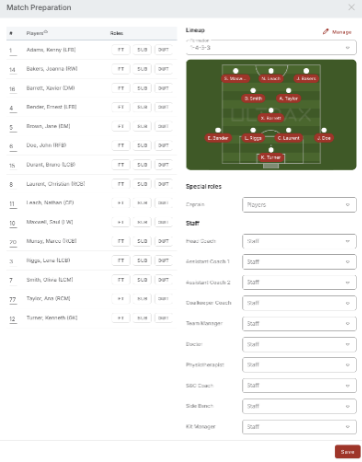
3. In the Lineup section, click the Manage icon in the top right corner to make changes. From there, you can directly adjust player positions.
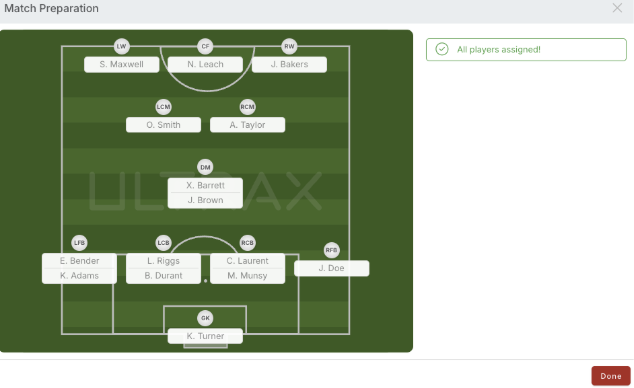
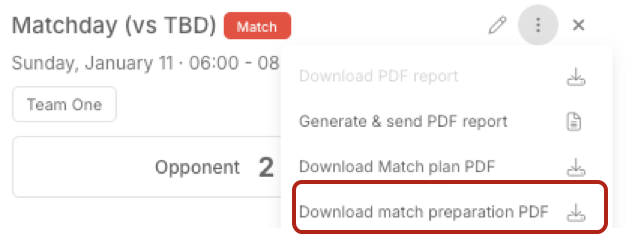
4. There is also an option to download the match preparation as a PDF. To do this, click on the three dots menu and select the option to generate the file.
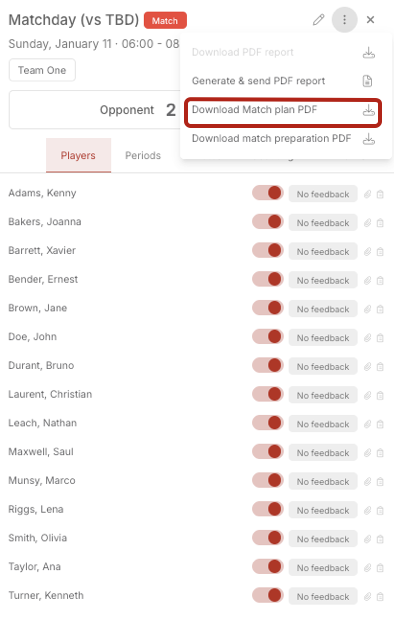
Download Match Preparation PDF
1. Click on an event in the calendar.
2. In the newly opened Match event details section, click on the three dots next to the event name to see all options.
3. Click on Download Match Preparation plan PDF. You can now save this file to your device and share it with the rest of the team.