Ultrax Drill is the ultimate tool for sketching drills across a wide range of sports, offering unparalleled flexibility and functionality. No matter the sport, Ultrax Drill enhances your ability to plan training sessions with precision. By enabling clear visualization of drills, it helps improve tactical organization, communication, and player engagement. Coaches can seamlessly integrate these drills into broader training programs, leading to better preparation and performance.
Create a Drill
Creating a new drill within the Ultrax platform can be done in just a few steps:
1. Click on Drill in the sidebar. You will be taken to a page containing all of your saved drills.
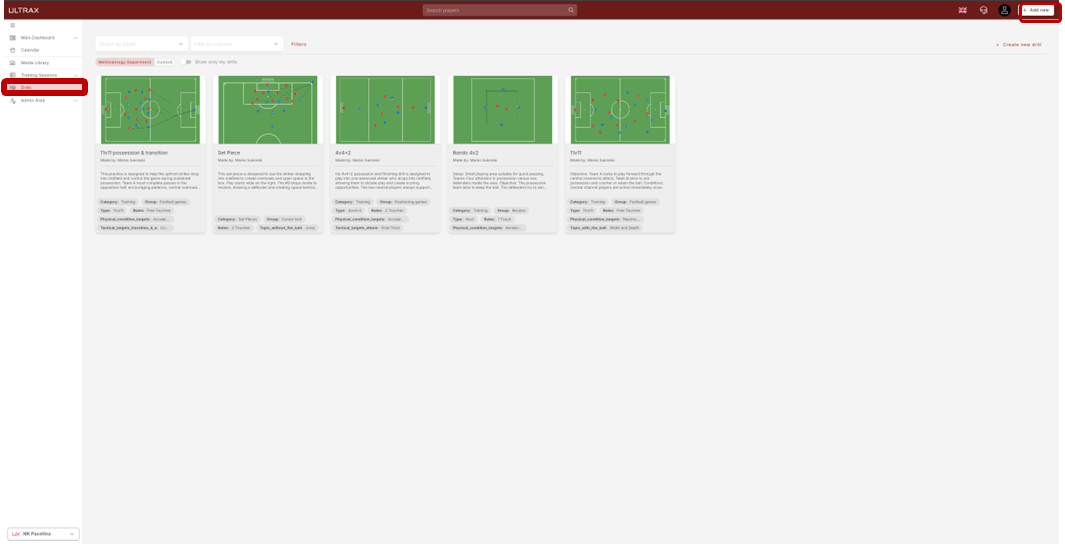
2. Click on Create new drill. A popup window will show up requiring you to input some basic information.
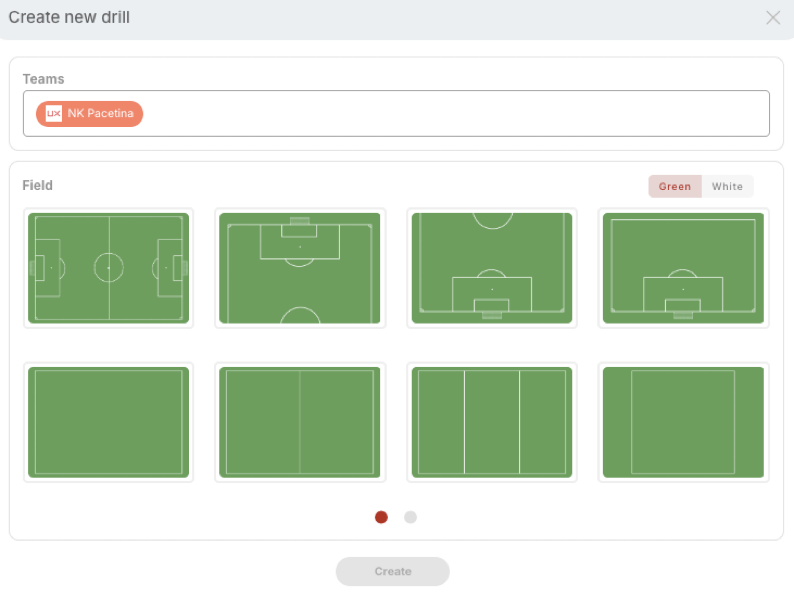
3. Once you enter the team and choose the field, you can click on Create and start sketching.
4. After you’re done creating your drill, click on the Save button in the upper left corner to save your drill in the library for easy access.
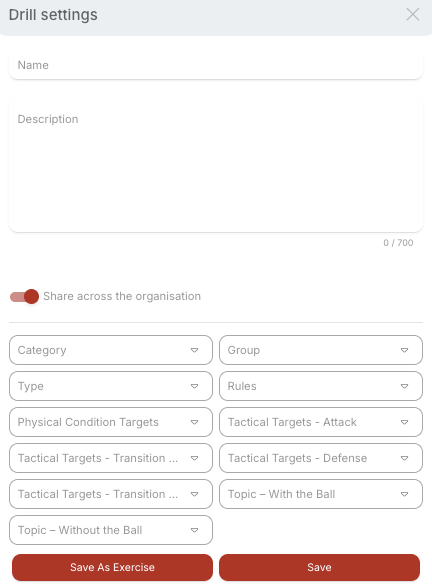
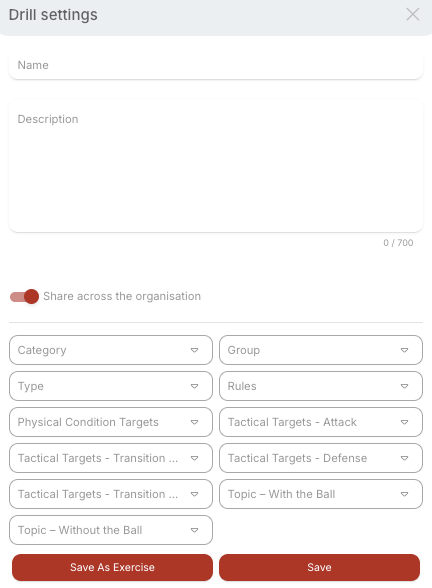
5. You will be prompted to enter all required information to explain the drill you have drawn.
Alternatively, you can choose to save a drill using “Save as Exercise.” When saved as an exercise, the drill will be stored in the Football Library and can be used for creating training protocols.
If you select “Save” only, the drill will be stored in the Drills section and can be used when attaching drills to events.
Share Across the Organization – If your organization includes more than one category, you can select “Share Across the Organization.” This allows coaches from other categories to view and use the selected drills.
Sketch Toolbar
Click on Bohrer in the sidebar to access a page containing all of your saved drills. Select Create New Drill to open a pop-up window where you will be prompted to enter basic information.
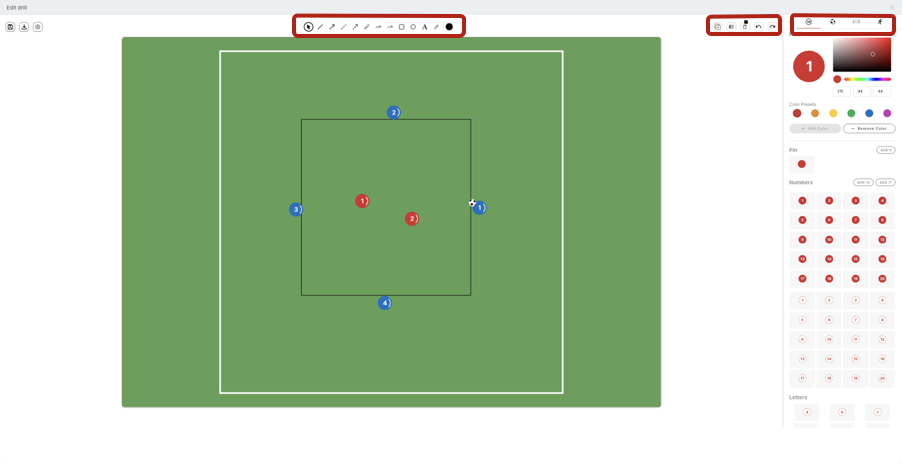
At the top of the drill view, you will find the sketch toolbar used for creating and editing drills. These tools allow you to draw various line types, add arrows and shapes, insert text, and change colors. You can also select and place equipment such as players, dummies, and hurdles. Additional functions include duplicating and mirroring elements, as well as undoing or deleting equipment and drawings.
Edit a Drill
To edit the details of an existing drill, follow these steps:
1. Click on Drill in the sidebar. You will be taken to a page containing all your saved drills.
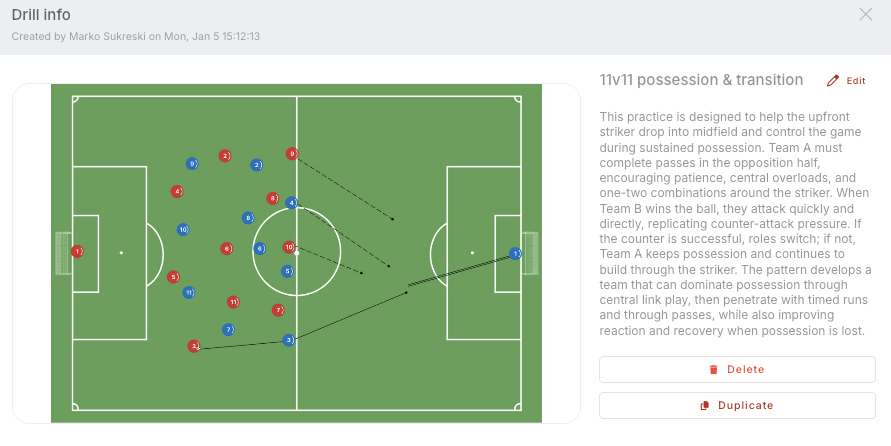
2. Click on the desired drill to open a pop-up window. From this window, you can delete or duplicate the drill. To modify the sketch, click Edit in the upper-right corner.
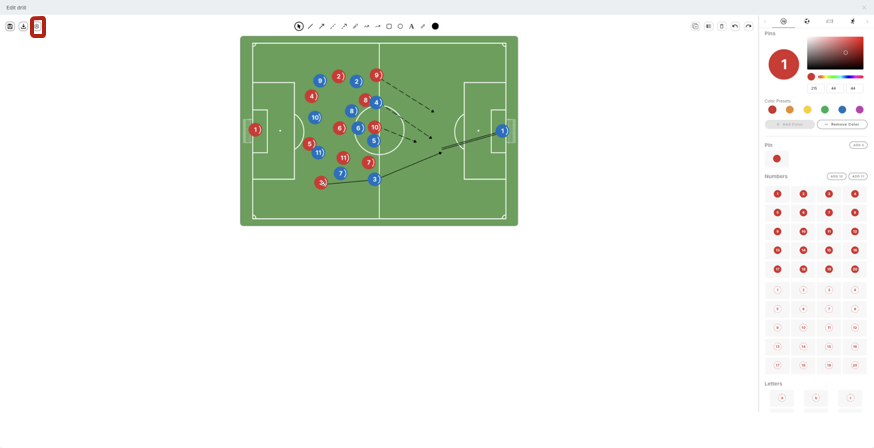
3. While in the sketch view, use the button located at the bottom left to edit the drill settings.
4. This will take you directly to the drill settings.
Delete a Drill
You can also delete an existing drill from the library completely:
1. Click on Drill in the sidebar. You will be taken to a page containing all of your saved drills.
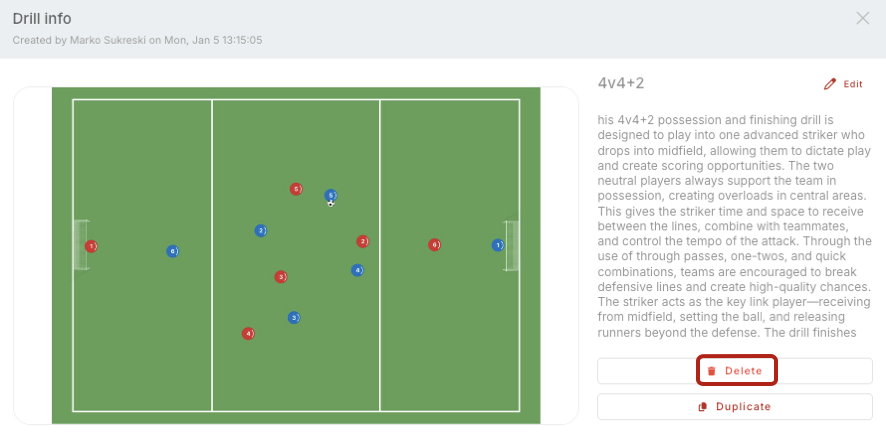
2. Click on the drill you want to delete, and a popup window will open. Click on Delete and confirm your choice.
Export a Drill
You can export drills you created in JPG or PDF format and save them to your device:
1. Click on Drill in the sidebar. You will be taken to a page containing all of your saved drills.
2. Click on the drill you want to export, and a popup window will open. Click on Export.
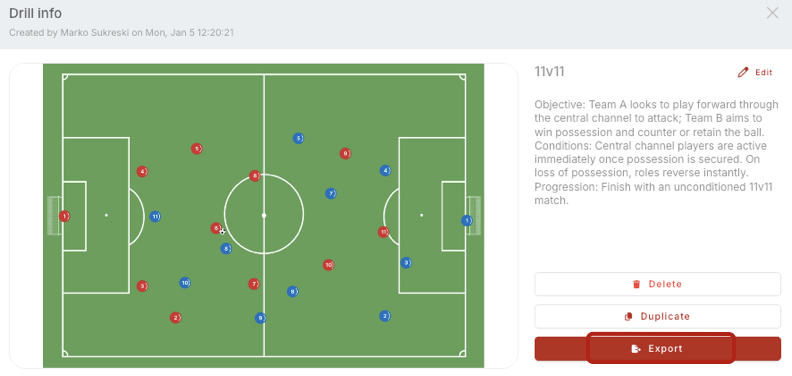
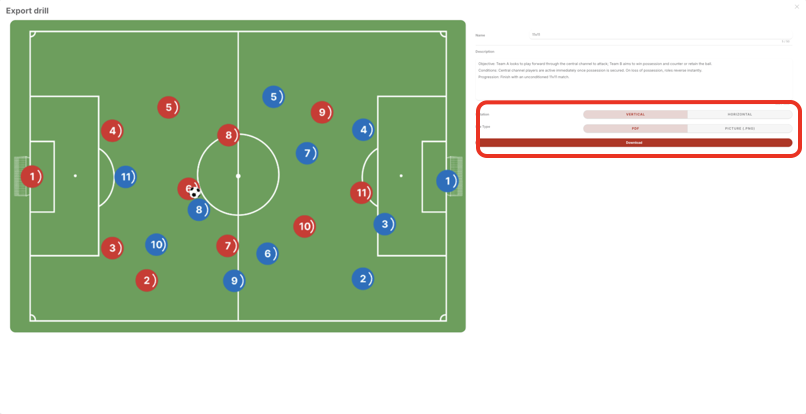
3. You will be taken directly to the drill export page. A pop-up window will prompt you to choose the file orientation and format, and to edit the drill name and description if desired. Once your selections are complete, click Download to begin the download.