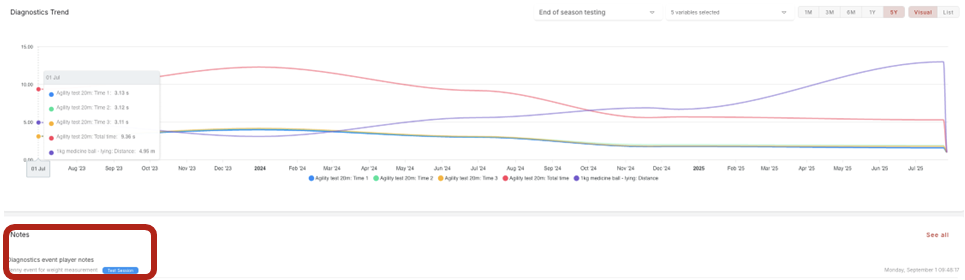
Create a Diagnostic Protocol
If you want to create a diagnostic protocol, follow these steps:
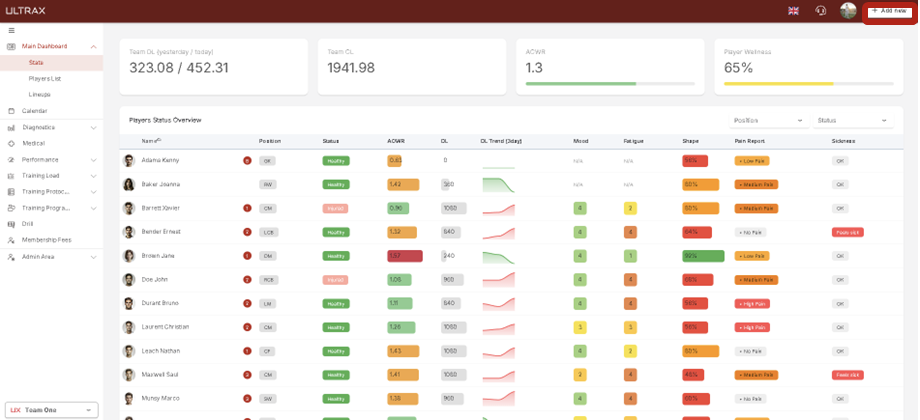
1. Click Add New in top right corner.
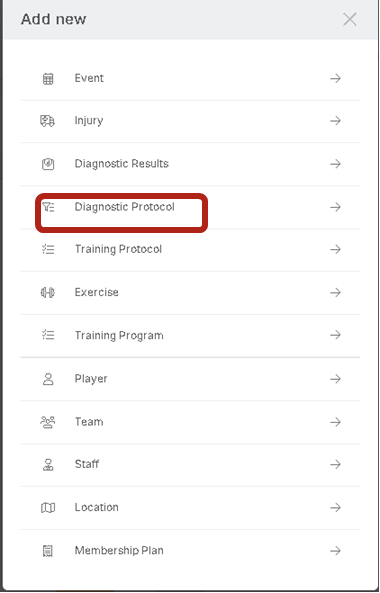
2. Select Diagnostic Protocol from the list.
3. Enter the Protocol Name and Description.
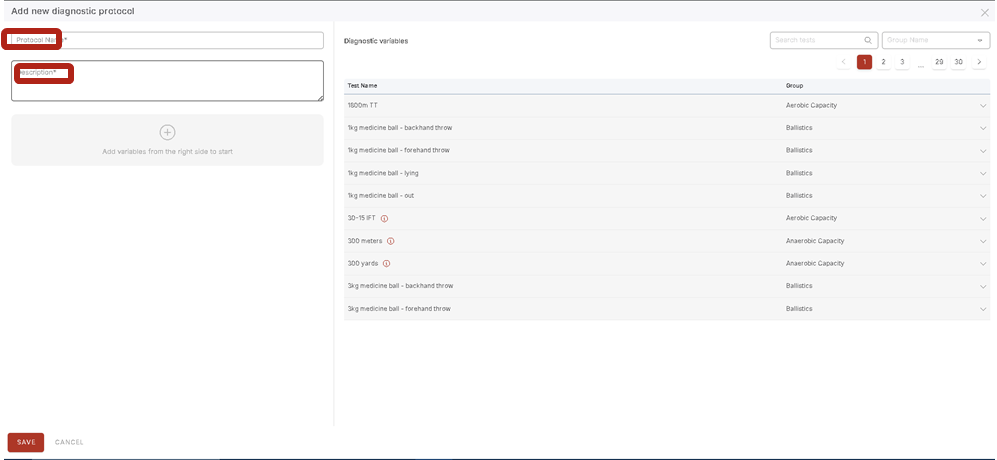
4. Click Add Test and Search a Test by name or click Group Name to browse available tests.
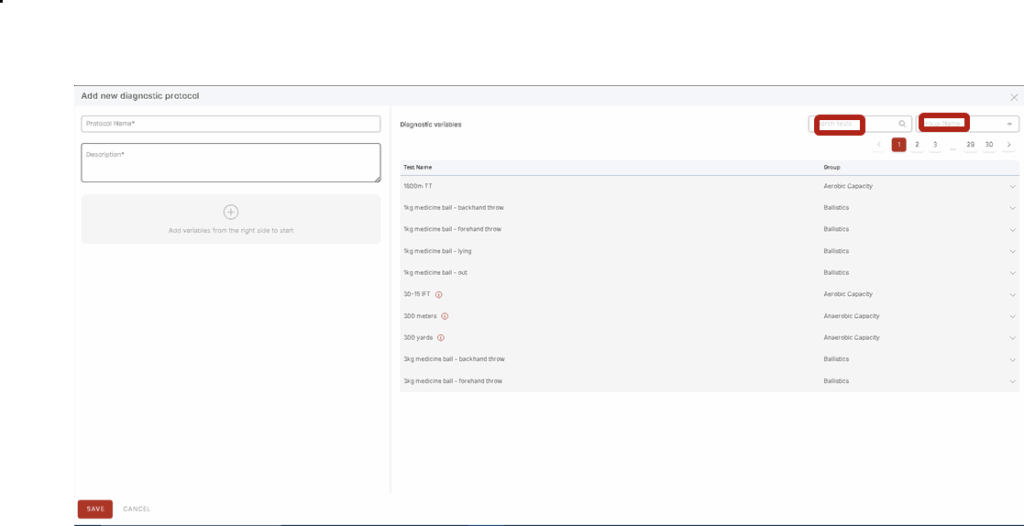
5. Choose the desired test(s) to add to the protocol.
6. Click Save to finish.
View Your Protocols
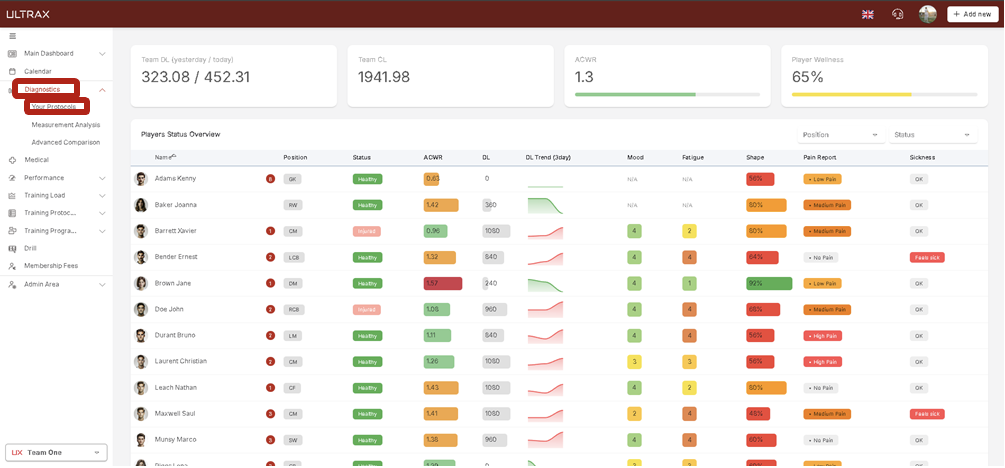
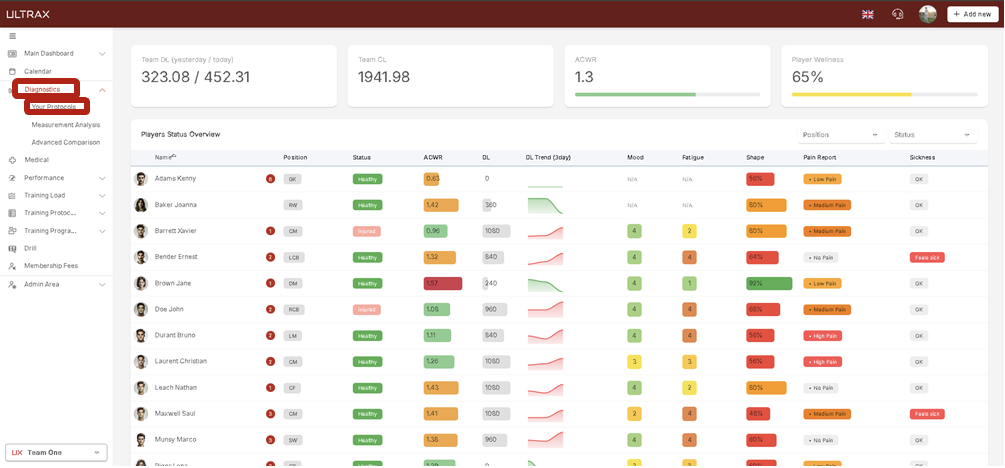
1. Click on Diagnostic in the main sidebar, and then choose Your Protocols.
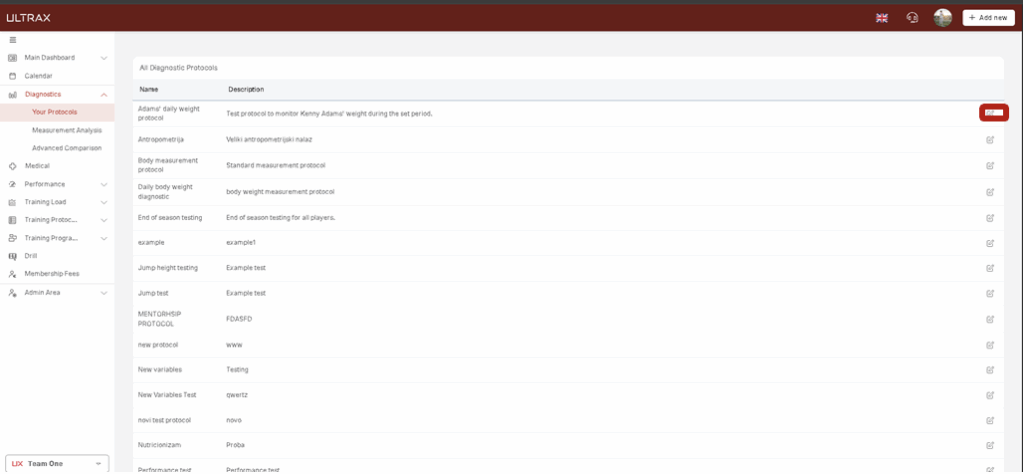
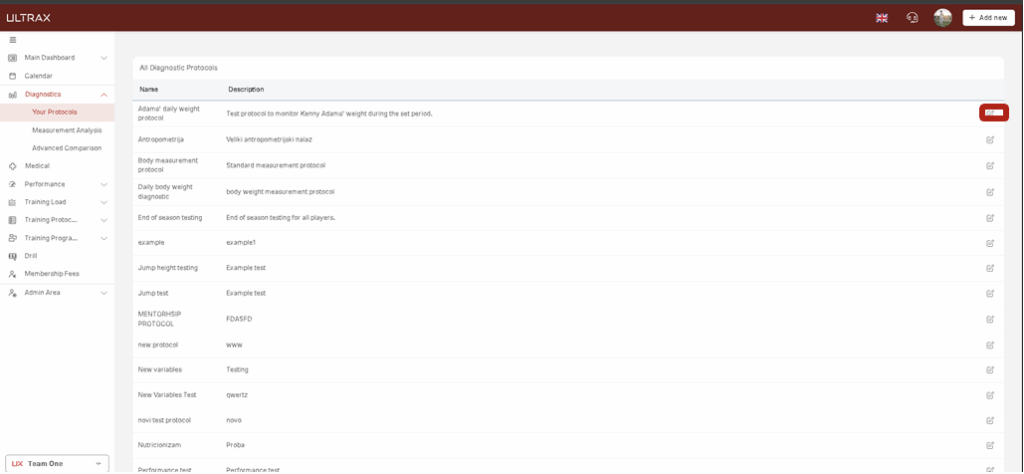
2. In the newly opened screen, you will be able to see all your diagnostic protocols which can be edited by clicking the edit icon on the far right.
Create a Test Session Event
To schedule a new test session using an existing diagnostic protocol, follow these steps:
1. Click Add New in top right corner.
2. Choose Event.
3. In the event toolbar, click on Other, and select Test Session as the event type.
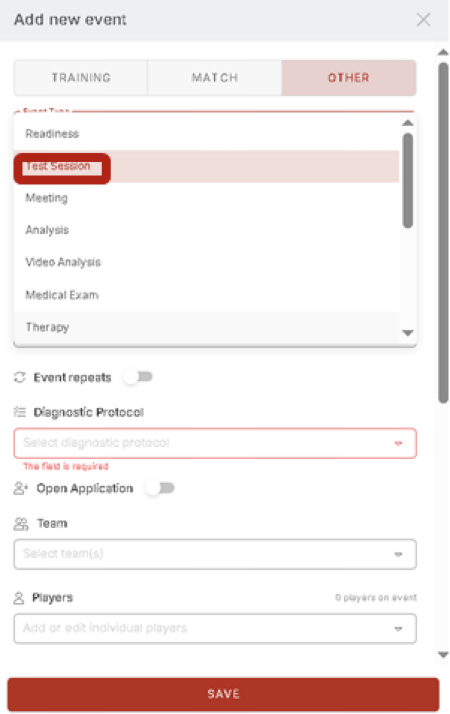
4. Add an even title and select a diagnostic protocol from the dropdown.
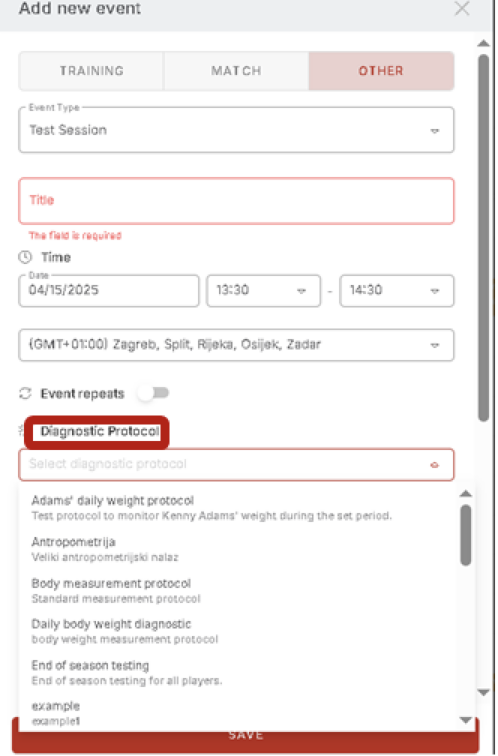
5. Select the participating team and add other event details.
6. Click Save once you’re finished.
Entering Diagnostic Results
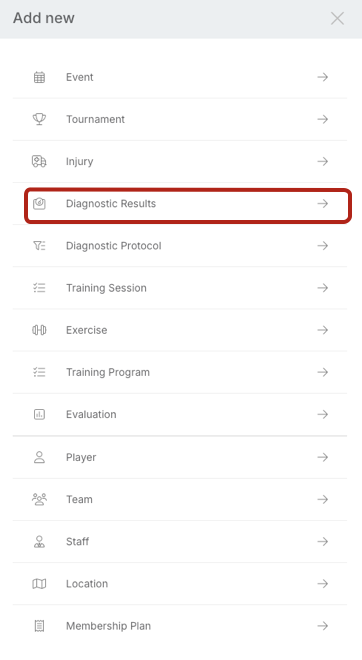
1. Click Add New.
2. Select Diagnostic Results.
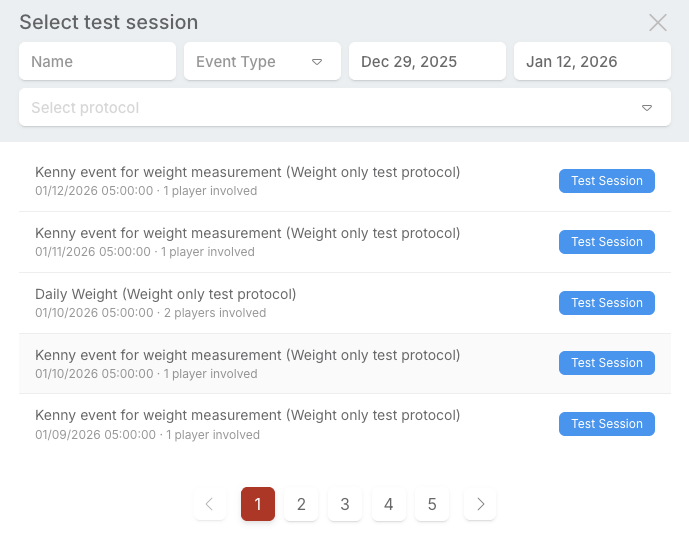
3. Choose the test session for which you want to add results, then select the player.
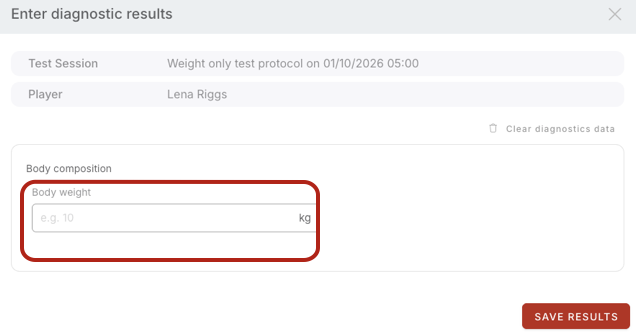
4. A new window will open, allowing you to enter the results.
View Your Protocols
1. Click on Diagnostic in the main sidebar, and then choose Your Protocols.
2. In the newly opened screen, you will be able to see all your diagnostic protocols which can be edited by clicking the edit icon on the far right.
View Measurement Analysis
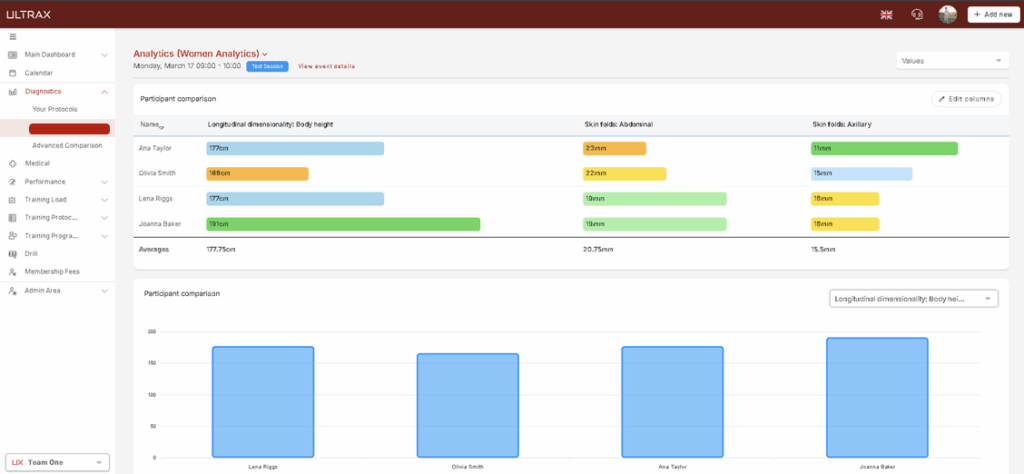
In Measurement Analysis, you can view and compare participant results across different test sessions. To access and navigate this feature:
1. Click Diagnostics in the main sidebar.
2. Choose Measurement Analysis.
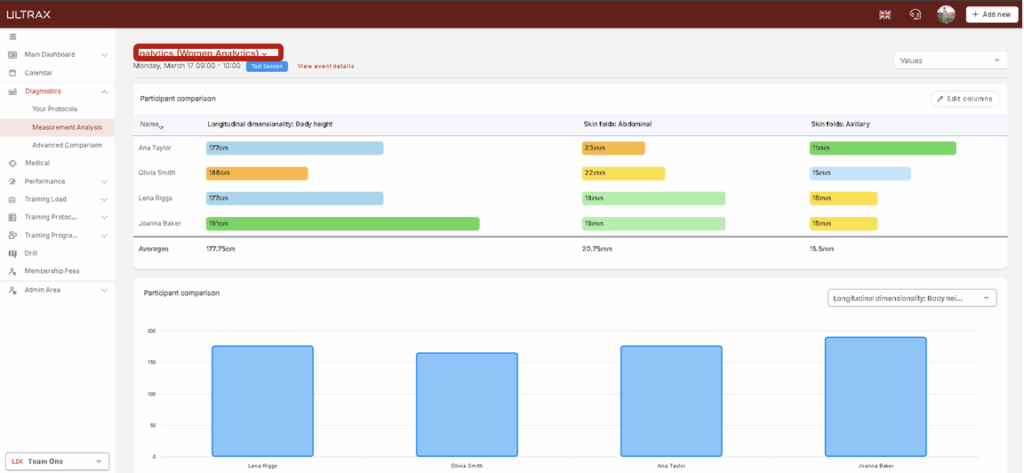
3. At the top of the page, click on the Test Session dropdown to select and switch between different test sessions.
Advanced Comparison
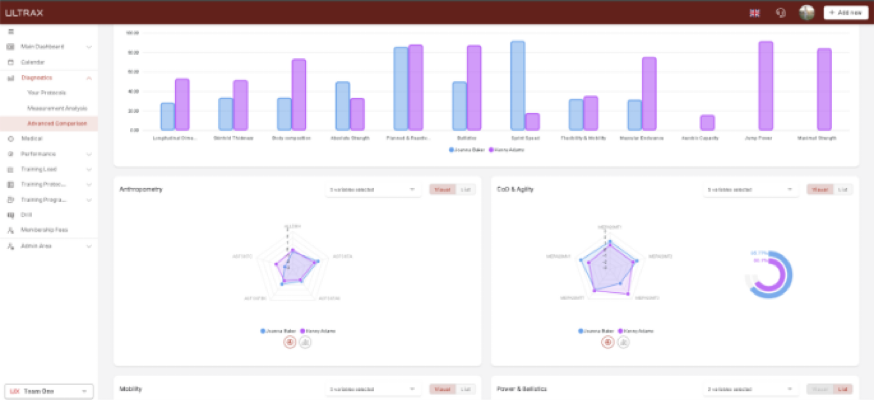
With the Advanced Comparison feature, you can directly compare the performance of two athletes side by side:
1. Click Diagnostics in the main menu.
2. Go to Advanced Comparison and click Select Athlete to choose the first and second athlete.
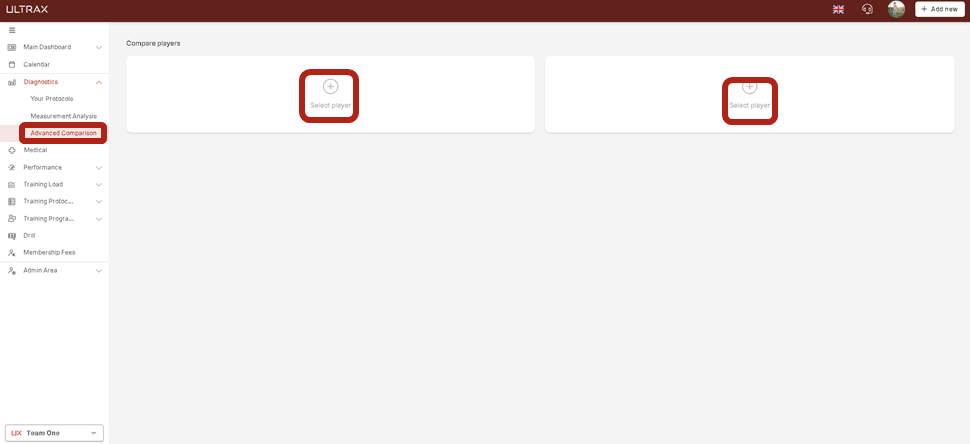
3. Once selected, the advanced comparison view will display their performance metrics.
Adding Notes to a Diagnostic Event
You can now add notes to the Diagnostic Event by selecting the event types Test Session or Readiness. Once added, the notes will be visible in the diagnostic section of the player to whom they are assigned:
1. Select the testing protocol.
2. Navigate to the attach file in the right corner.
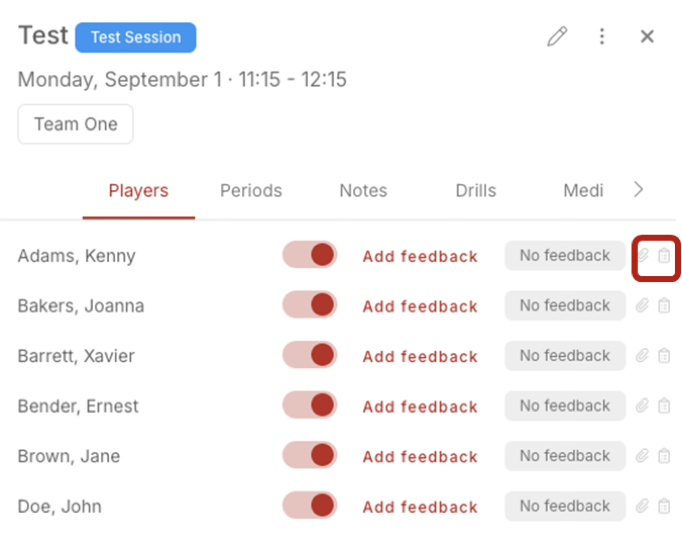
3. Add the notes.
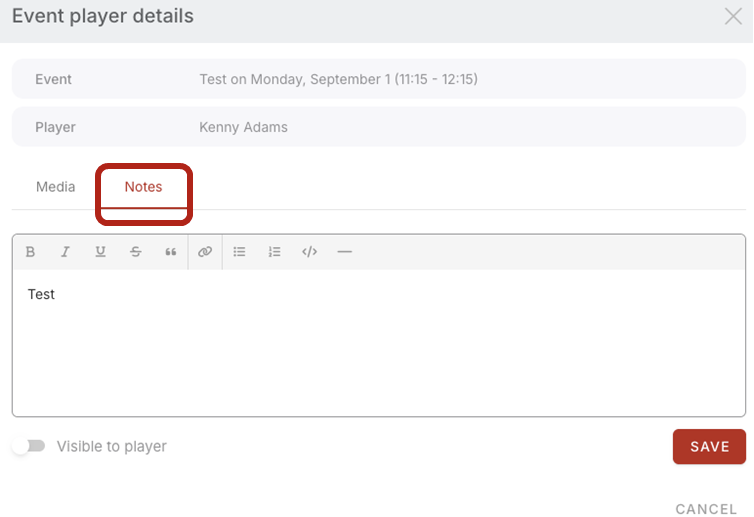
4. Added notes will be visible in the diagnostic section of the player.